Introduction
GNOME is one of the most popular desktop environments available for Linux distributions. It is known for its clean interface, modern design, smooth performance, and user-friendly experience. Many Linux distributions, including Ubuntu, Fedora, and Debian, use GNOME as their default desktop environment. Although GNOME provides a beautiful and functional interface out of the box, users sometimes want more control over its appearance, behavior, and functionality. This is where GNOME Tweaks becomes useful.
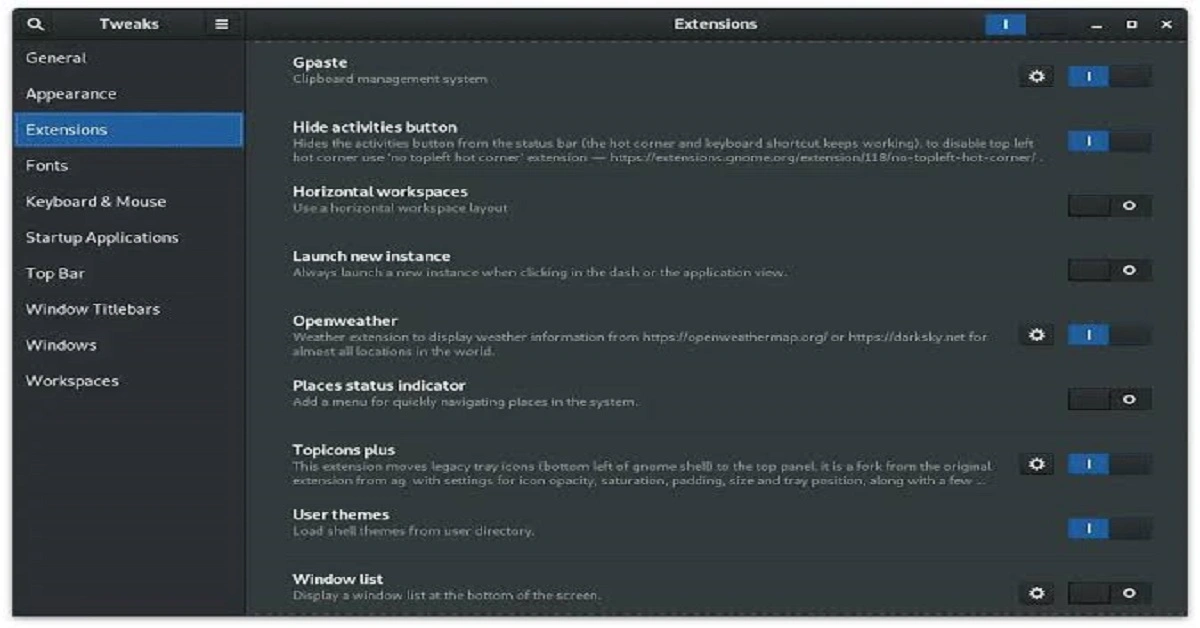
GNOME Tweaks is a powerful customization tool that allows users to modify different aspects of the GNOME desktop environment. It provides additional settings that are not always available in the standard GNOME Settings application. With GNOME Tweaks, users can change themes, icons, fonts, mouse behavior, window appearance, startup applications, and other desktop features.
Whether you are a beginner exploring Linux for the first time or an experienced user who wants to personalize your desktop, GNOME Tweaks offers several useful options. In this article, we will explore what GNOME Tweaks is, its important features, how to install it, and how to use it to create a more personalized Linux desktop experience.
What Is GNOME Tweaks?
GNOME Tweaks is a desktop customization utility designed specifically for the GNOME desktop environment. It provides access to advanced configuration options that help users personalize their Linux systems.
The standard GNOME Settings application focuses on essential system configurations, such as Wi-Fi, Bluetooth, displays, sound, keyboard, and privacy. However, it does not include every customization option. GNOME Tweaks fills this gap by offering additional controls for desktop appearance and behavior.
For example, users can change the desktop theme, adjust font settings, modify title bar buttons, enable or disable certain desktop effects, and manage startup applications.
GNOME Tweaks is especially useful for users who prefer a personalized desktop rather than the default GNOME appearance.
Key Features of GNOME Tweaks
GNOME Tweaks includes several customization features that make managing the GNOME desktop easier. Let’s explore some of its most important options.
1. Change Themes
One of the most popular features of GNOME Tweaks is theme customization. Themes allow users to change the overall appearance of their desktop environment.
With GNOME Tweaks, users can customize:
- Application themes.
- Shell themes.
- Legacy application themes.
- Window appearance.
A theme can change the colors, buttons, borders, and other visual elements of applications. Users can install third-party GTK themes to give their Linux desktop a completely different look.
For example, users who prefer a dark interface can install a dark GTK theme and apply it through GNOME Tweaks.
2. Customize Icons
Icons play an important role in the appearance of a desktop environment. GNOME Tweaks allows users to change the default icon theme to another installed icon pack.
There are many icon themes available for Linux users, including Papirus, Tela, Numix, and other community-created designs.
Changing the icon theme can make the desktop look more modern and visually appealing. Users can also choose icon styles that match their preferred desktop theme.
To change icons:
- Open GNOME Tweaks.
- Select the Appearance section.
- Find the Icons option.
- Choose an installed icon theme.
The selected icon theme will change the appearance of supported application and system icons.
3. Customize Fonts
GNOME Tweaks also provides options for adjusting fonts throughout the desktop environment.
Users can change:
- Interface text fonts.
- Document fonts.
- Monospace fonts.
- Legacy window title fonts.
It is also possible to adjust font scaling and hinting options, depending on the installed GNOME version.
Font customization is useful for people who prefer larger text, clearer typography, or a different visual style. Developers may also prefer a particular monospace font for improved readability when working with code.
4. Manage Window Behavior
Another useful feature of GNOME Tweaks is window customization.
It allows users to modify different aspects of window behavior, including title bar buttons and window focus settings.
For example, users can enable or disable minimize and maximize buttons. They can also adjust certain window focus behaviors depending on the available options.
These settings are helpful for users who want their desktop to behave more like traditional desktop environments.
5. Customize Mouse and Touchpad Settings
GNOME Tweaks offers additional mouse and touchpad configuration options.
Depending on the GNOME version, users may find settings related to mouse behavior, touchpad gestures, and pointer functionality.
These options can help improve the overall desktop experience, especially for laptop users who frequently work with touchpads.
Users can also access standard mouse and touchpad configurations through the GNOME Settings application.
6. Manage Startup Applications
Startup applications are programs that automatically launch when a user logs into the desktop.
GNOME Tweaks includes a Startup Applications section that allows users to manage applications that should run automatically after login.
For example, users might want to launch:
- A clipboard manager.
- A messaging application.
- A cloud synchronization tool.
- A productivity application.
Adding useful startup applications can save time and make daily workflows more convenient.
However, users should avoid adding too many applications because unnecessary startup programs can increase login time and consume system resources.
7. Customize the Top Bar
The GNOME top bar displays useful information, including the clock, system status, and quick access to certain desktop functions.
Depending on the GNOME version and installed extensions, users can customize different elements of the top bar.
Some customization options include displaying seconds in the clock, showing the date, and adjusting other interface-related settings.
GNOME Extensions can provide additional customization features beyond those available directly in GNOME Tweaks.
8. Configure Keyboard and Input Behavior
GNOME Tweaks also provides several keyboard-related customization options.
Users may be able to adjust keyboard behavior, special key settings, and other input preferences depending on their desktop version.
These options are useful for users who want to make their keyboard experience more comfortable and efficient.
For more advanced keyboard shortcuts, users can also explore the Keyboard section in GNOME Settings.
How to Install GNOME Tweaks on Linux
Installing GNOME Tweaks is relatively simple. The installation process depends on the Linux distribution you are using.
Install GNOME Tweaks on Ubuntu and Debian
Ubuntu and Debian users can install GNOME Tweaks through the terminal.
Open the terminal and run:
sudo apt update
sudo apt install gnome-tweaks
After installation, open the application from the applications menu by searching for GNOME Tweaks.
Install GNOME Tweaks on Fedora
Fedora users can install GNOME Tweaks using the DNF package manager.
Run the following command:
sudo dnf install gnome-tweaks
Once the installation is complete, launch GNOME Tweaks from the application menu.
Install GNOME Tweaks on Arch Linux
Arch Linux users can install GNOME Tweaks using Pacman.
Run:
sudo pacman -S gnome-tweaks
After installation, the application will be available through the desktop applications menu.
Install GNOME Tweaks Using a Graphical Software Center
Users who do not prefer using the terminal can install GNOME Tweaks through their distribution’s software center.
Open the Software application, search for GNOME Tweaks, and select Install.
This method is especially useful for Linux beginners who are still learning terminal commands.
How to Customize GNOME Using GNOME Tweaks
After installing GNOME Tweaks, users can begin customizing their desktop.
Follow these simple steps:
- Open the Applications menu.
- Search for GNOME Tweaks.
- Launch the application.
- Explore the available customization categories.
- Select the settings you want to change.
- Apply different themes, icons, fonts, and window options.
Most changes take effect immediately. However, some appearance changes may require restarting an application or logging out and logging back in.
It is recommended to change one setting at a time so that users can easily identify which changes they prefer.
GNOME Tweaks and GNOME Extensions: What Is the Difference?
Many Linux beginners confuse GNOME Tweaks with GNOME Extensions. Although both tools help customize the desktop, they serve different purposes.
GNOME Tweaks focuses mainly on configuration and appearance settings. It allows users to adjust themes, fonts, icons, window behavior, and other desktop preferences.
GNOME Extensions, on the other hand, add new features and functionality to the GNOME desktop.
For example, extensions can provide:
- Custom application docks.
- Advanced window management.
- Additional system indicators.
- Clipboard history.
- Improved workspace controls.
- Desktop panel customization.
Both tools can work together to create a highly personalized desktop environment.
However, users should always check extension compatibility with their installed GNOME version before installing extensions.
Benefits of Using GNOME Tweaks
GNOME Tweaks provides several advantages for Linux users.
Better Desktop Personalization
Users can customize the appearance of their desktop according to their personal preferences. They can choose different themes, icons, and fonts to create a unique environment.
Improved Productivity
Managing startup applications and adjusting window behavior can make everyday tasks more convenient.
Easy Configuration
GNOME Tweaks provides a graphical interface for advanced settings, reducing the need to modify configuration files manually.
More Control Over the Desktop
Users gain access to additional customization options that are not always available in the standard GNOME Settings application.
Beginner-Friendly Interface
The application is relatively simple to navigate, making it accessible to both new and experienced Linux users.
Common GNOME Tweaks Problems and Their Solutions
Although GNOME Tweaks is generally easy to use, users may sometimes experience problems.
Theme Not Applying Correctly
Some themes may not work properly because of compatibility issues or missing dependencies.
Solution: Make sure the theme supports your installed GNOME version and that all required theme files are installed correctly.
Shell Theme Option Is Missing
The Shell theme customization option may not appear or may be unavailable in some configurations.
Solution: Check whether GNOME Shell Extensions support is properly configured and whether the User Themes extension is compatible with your GNOME version.
Icons Are Not Changing
Sometimes, the selected icon theme does not appear immediately.
Solution: Verify that the icon theme is installed in the correct directory and select it again through GNOME Tweaks. Restarting affected applications may also help.
Extensions Are Not Working
GNOME Extensions can stop working after a desktop upgrade.
Solution: Check extension compatibility, update the extensions, and disable incompatible ones.
GNOME Tweaks Is Not Available
Some Linux distributions do not install GNOME Tweaks by default.
Solution: Install it using your distribution’s package manager or graphical software center.
Is GNOME Tweaks Worth Using?
GNOME Tweaks is definitely worth using if you enjoy customizing your Linux desktop. It provides a convenient way to access additional configuration options without requiring advanced technical knowledge.
For beginners, it offers an easy introduction to desktop customization. Experienced Linux users can use it to fine-tune their environment and improve their daily workflow.
However, users should remember that GNOME Tweaks is not a replacement for GNOME Settings or GNOME Extensions. Each tool serves a different purpose, and using them together provides more flexibility.
It is also important to remember that available options can vary depending on the GNOME version and Linux distribution.
Conclusion
gnome tweaks is an excellent customization utility for anyone who wants greater control over the GNOME desktop environment. It allows Linux users to personalize themes, icons, fonts, window behavior, startup applications, and other desktop settings through a simple graphical interface.
Whether you are using Ubuntu, Fedora, Debian, or Arch Linux, GNOME Tweaks can help you create a desktop environment that matches your preferences and workflow.
Its easy-to-use interface makes advanced customization accessible to beginners, while its additional configuration options are valuable for experienced Linux users. When combined with GNOME Extensions and standard GNOME Settings, it provides a flexible way to improve both the appearance and usability of your Linux desktop.